

User guide
Name a product. Get its submittal documents. Inside Claude or ChatGPT.
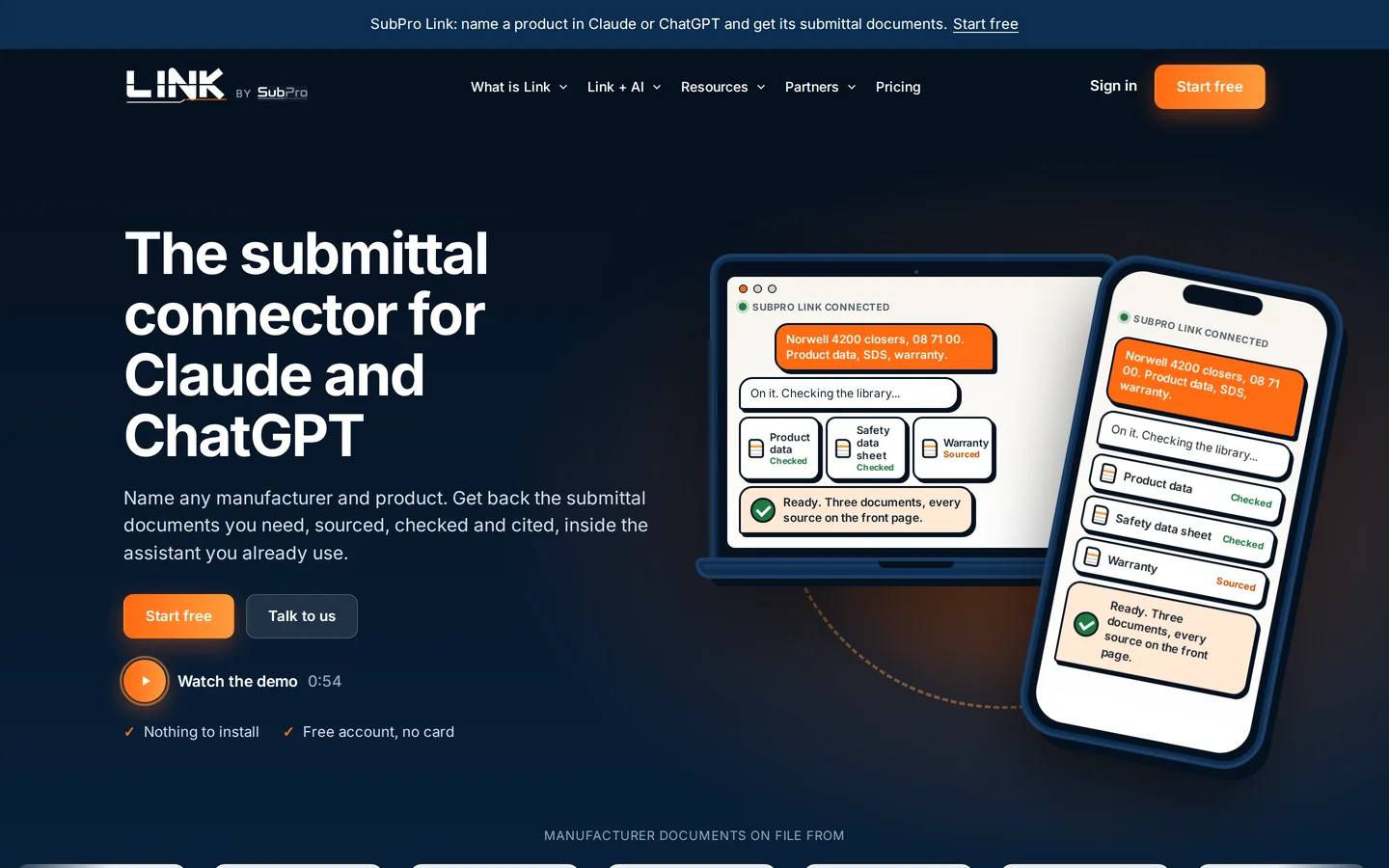
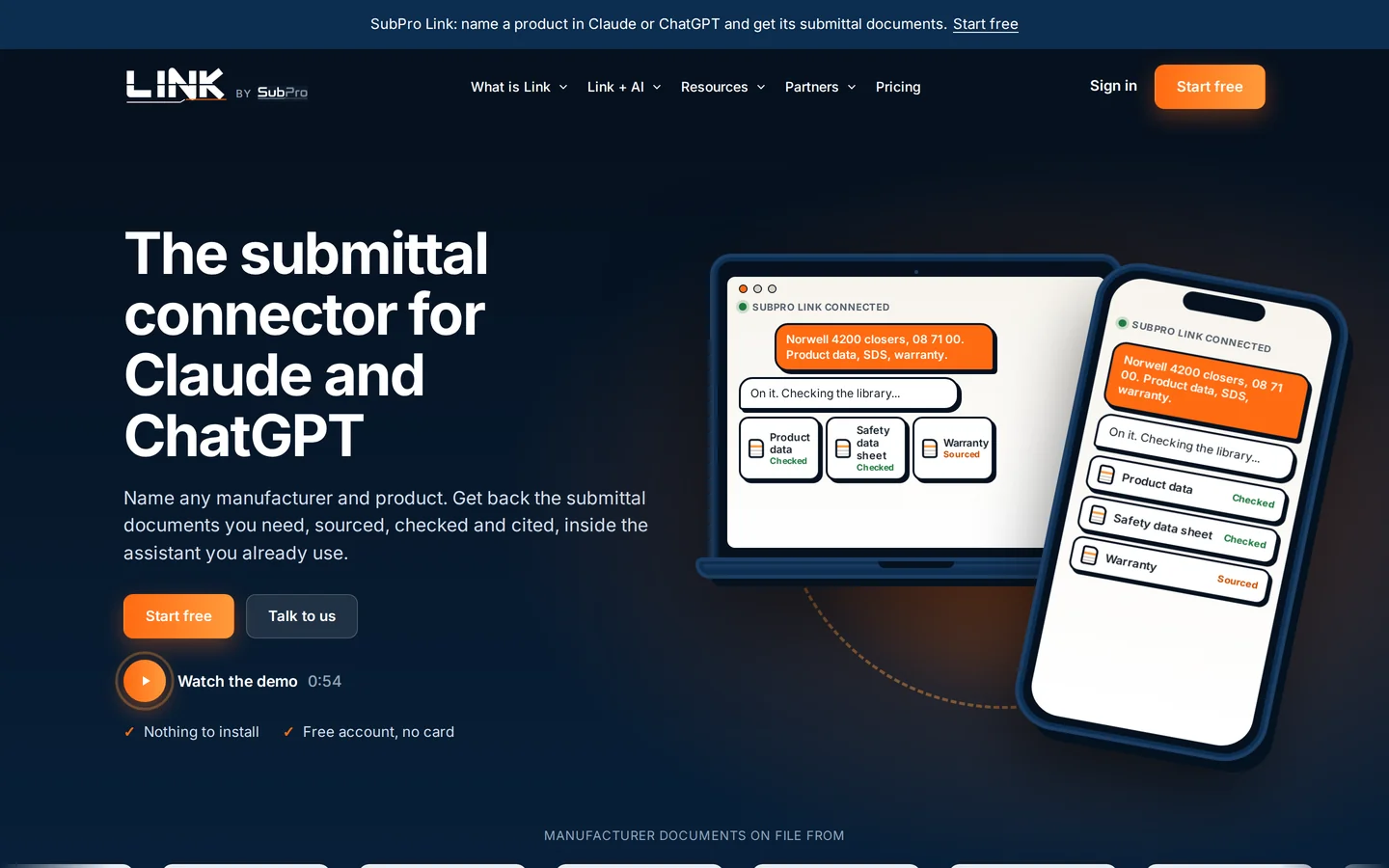
SubPro Link is a connector for the assistant you already use. This guide takes a new user from a free account to a downloaded set of submittal documents, one screen at a time, and explains what Link says back and why.
Chapter 1What Link is
Link puts SubPro's manufacturer library inside Claude and ChatGPT. You name a manufacturer and a product in the chat. Link finds the product, tells you which documents are on file, and puts the submittal documents together as one PDF you can download.
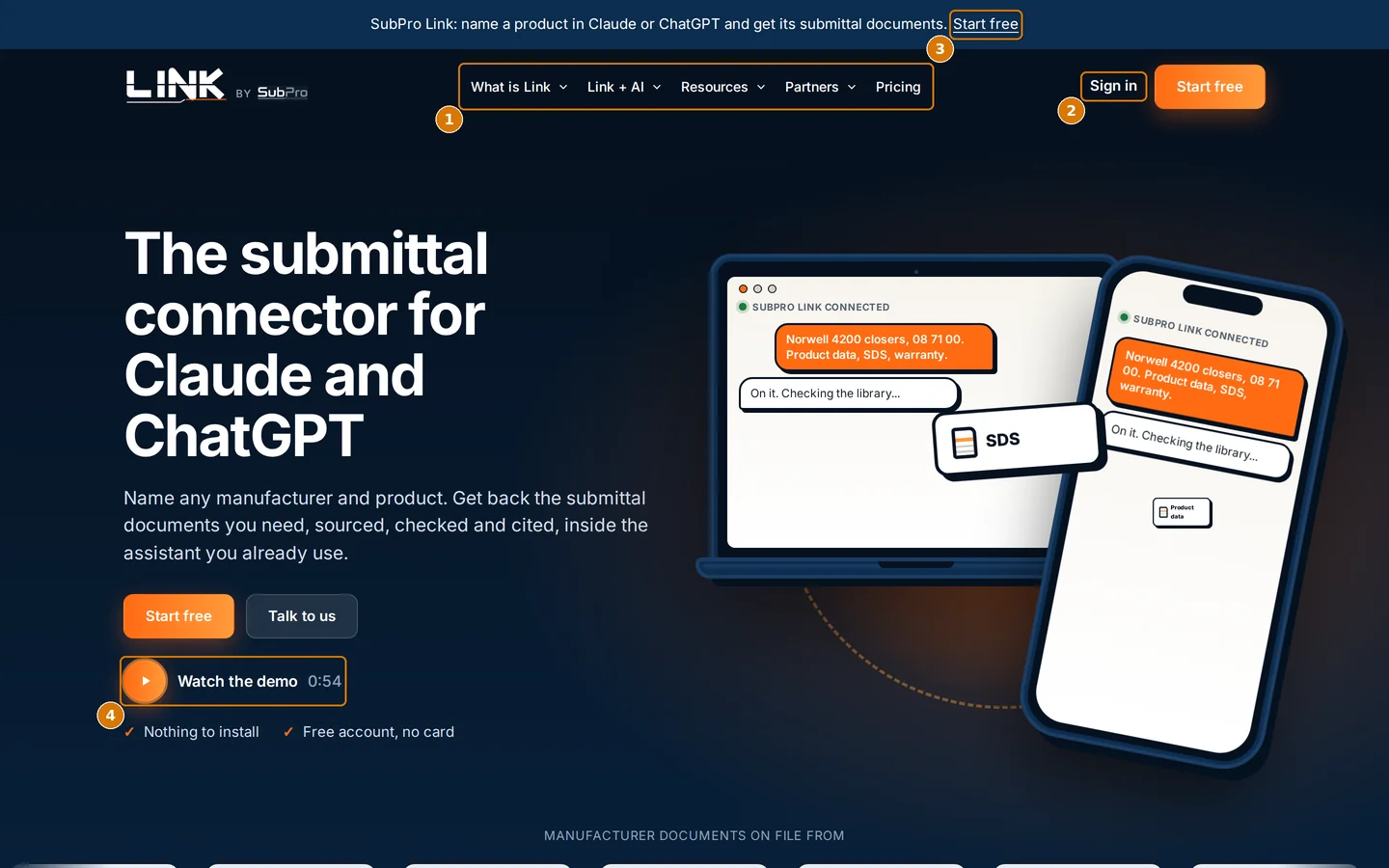
- 1The menu: what Link is, Link with each assistant, the library, partners and pricing
- 2Sign in to an existing account
- 3Start free creates an account. No card
- 4A 54 second demo of a real request
Four things Link can do
| What you ask for | What Link does | Cost |
|---|---|---|
| Find a product | Searches the library by name, model number or manufacturer and shows the matches with their spec section and the document kinds on file. | Free, on every plan |
| See what is on file | Lists each document for one product: kind, review standing, issue date, and the page it was found at. | Free, on every plan |
| Build the submittal documents | Puts the kinds you named together behind a manifest and sources any kind that is not on file yet. | Each delivered document counts against your monthly allowance |
| Download | Hands you one PDF behind a link that expires. | Free |
What you need
- A work email address. The free account needs nothing else.
- Claude on the web or the desktop app, or ChatGPT. Link works the same in both, and one account covers both.
- For builds, a paid plan. Looking things up is free on every plan, including the free one.
Chapter 2Create your free account
The free account takes two minutes and needs no card. It lets you look things up right away and is the account you upgrade later.
-
Go to sub-pro-ai.com/link and click Start free.
-
Fill in the form and click Create free account.
Use your work email. Link sends the verification link there and it becomes your sign in for both assistants. Role and company type are required so support knows who they are talking to. Phone and how you heard of Link are optional.
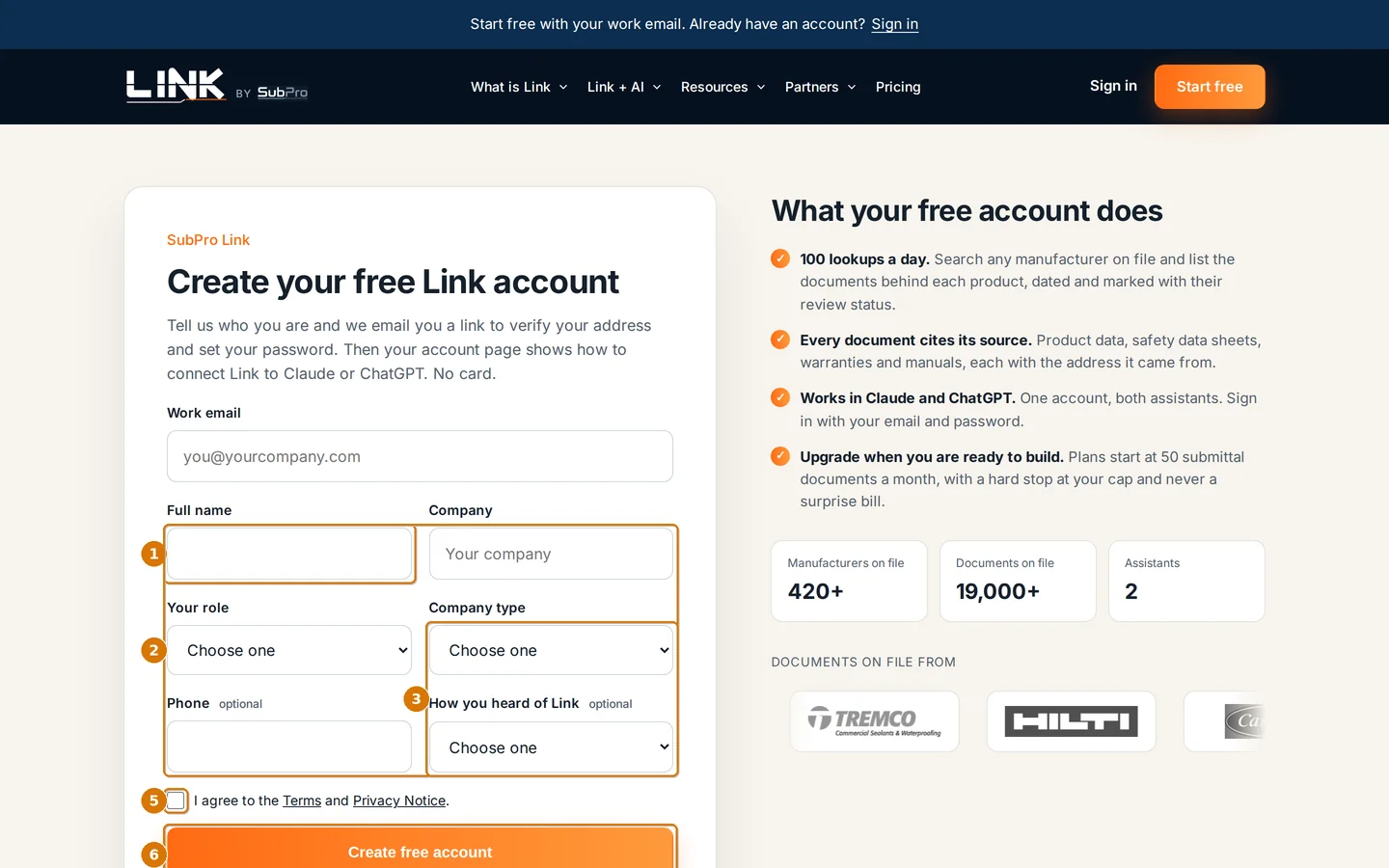 Create your free Link account
- 1Work email. This is your sign in
- 2Full name and company
- 3Your role and company type
- 4Phone and how you heard of Link, both optional
- 5Agree to the Terms and the Privacy Notice
- 6Create free account
-
Open the email from Link and click the verification link.
The link works once and expires in 15 minutes. Open it on the device you want to use. If it has expired, ask for a new one from the sign in page with Email me a sign in link instead.
-
Set a password.
The verification link lands on a page that asks for a password. From then on you sign in with your email and password. The emailed link keeps working as a backup and as the way to reset a forgotten password.
Chapter 3Sign in and your account page
Your account page is where you find the connector address, the steps for each assistant, your plan and your usage. Everything about connecting lives there, behind sign in.
-
Click Sign in on any Link page, then enter your email and password.
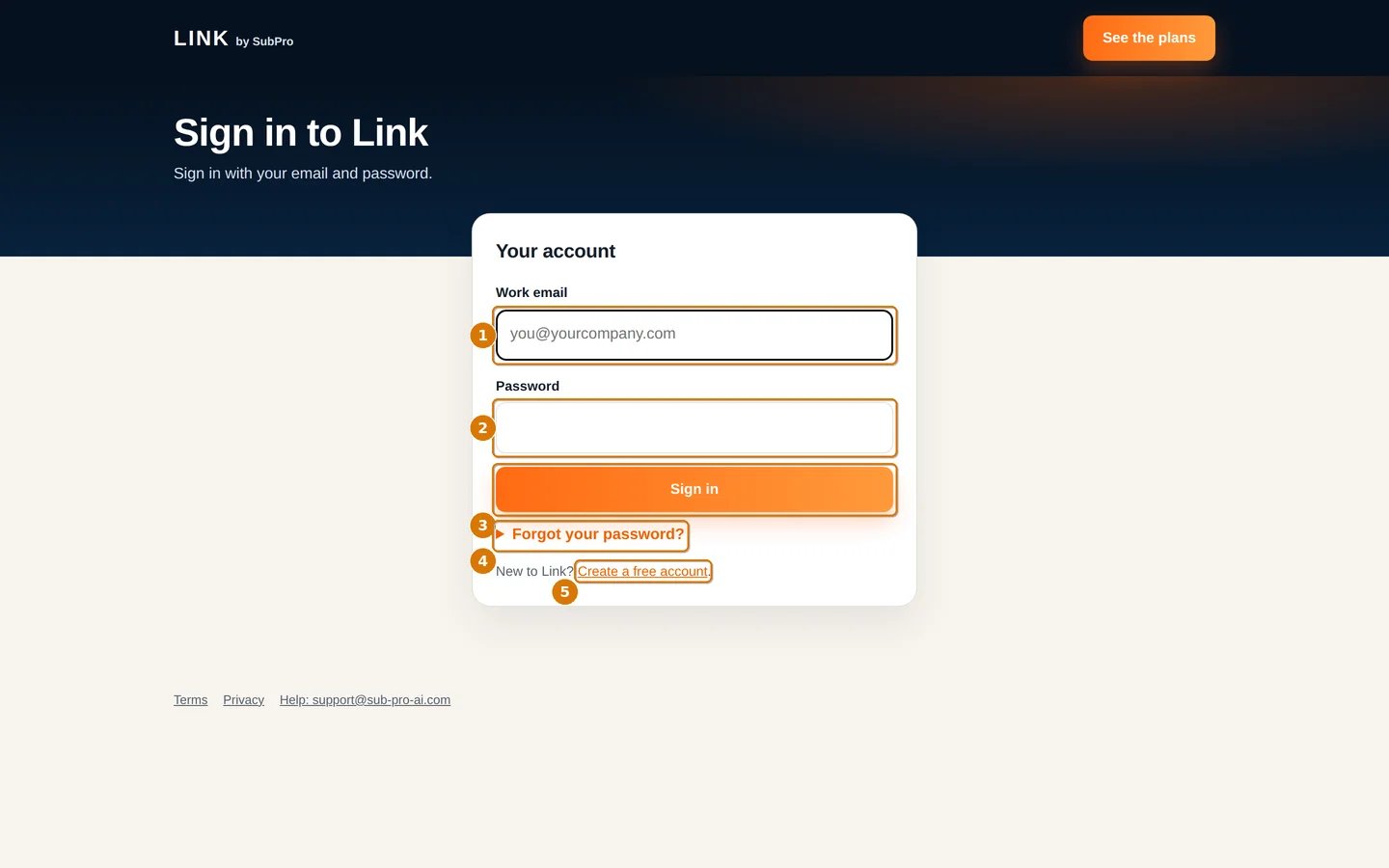 Sign in to Link
- 1Work email
- 2Password
- 3Sign in
- 4Forgot your password opens the emailed link option
- 5Create a free account if you are new
-
Forgot your password? Open the link under the button and ask for a sign in link by email.
The emailed link signs you in without a password. Once you are in, use Change password at the top of the account page to set a new one.
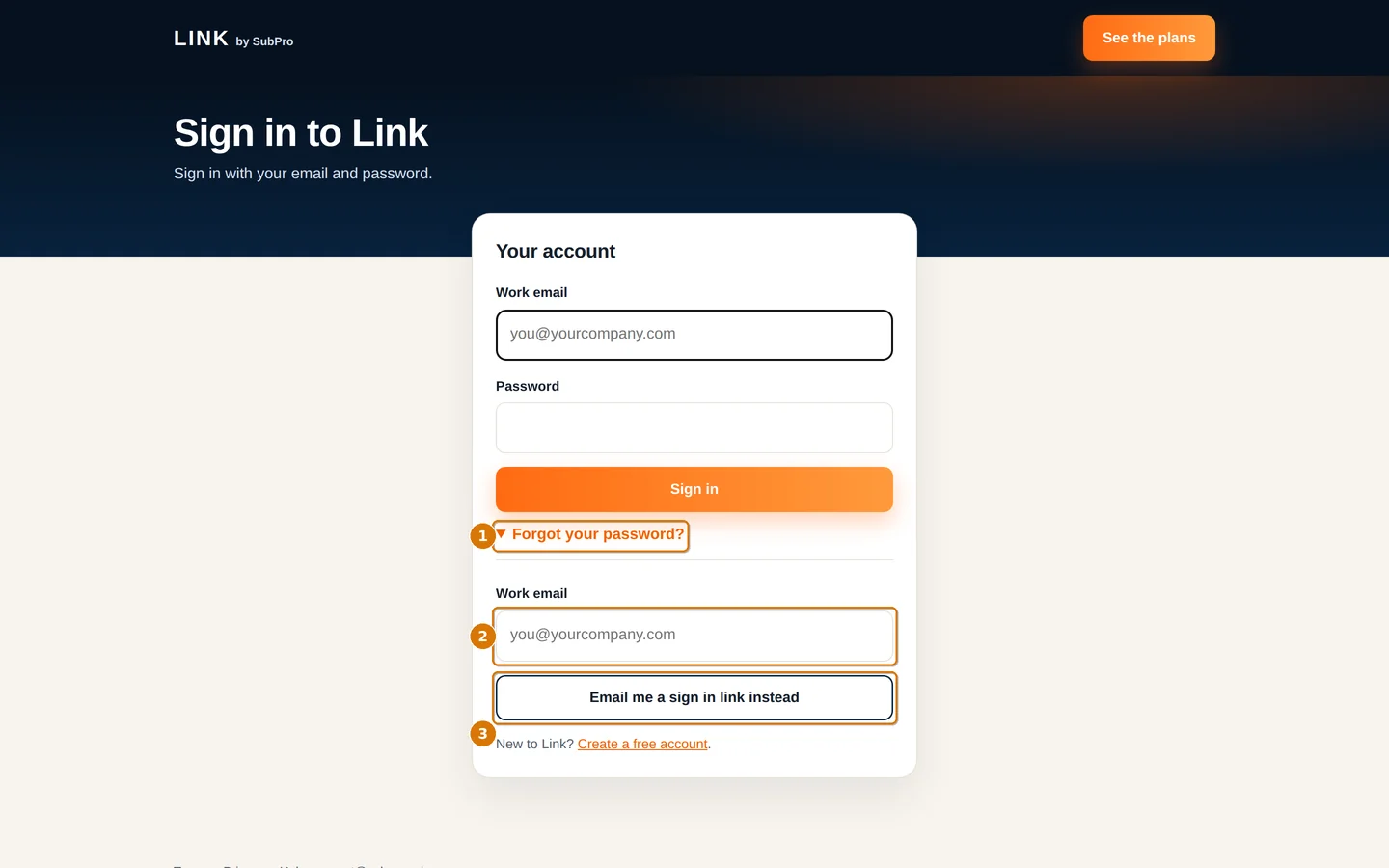 Email me a sign in link
- 1Forgot your password opens this section
- 2Your work email
- 3Email me a sign in link instead
-
Read your account page from top to bottom.
It has five parts. The first time you sign in it may also ask you to set a password or finish your details.
Your plan
The plan you are on. On the free plan it shows lookups used today out of 100 and a Pick a plan button. On a paid plan it shows submittal documents used this month out of your cap, plus Manage billing and Add a pack.
Connect
The connector address with a Copy button, and the steps for Claude and for ChatGPT, side by side. The address is the same for everyone. Your email is what makes it yours.
Try it
Three first requests with a Copy button each, for example "What does SubPro Link have on file for Hilti CP 606?" and "Build the submittal documents for Norwell 4200 closers: product data, SDS and warranty."
Connected apps
Every assistant where Link is connected, with a Disconnect button for each. Disconnect here if you change computers or leave a company.
Account
Your email, Change password, and Sign out at the top right.
Chapter 4Connect Link to Claude
You do this once. Claude keeps the connection and refreshes it on its own.
-
In Claude, open Settings, then Connectors.
On the web the settings are under your name at the bottom left. In the desktop app they are in the same place. Connectors are available on Claude's paid plans.
-
Choose Add custom connector. Name it SubPro Link and paste the address.
Leave the advanced settings empty. Claude registers itself with Link when you connect, so there is no client ID and no secret to enter.
https://api.sub-pro-ai.com/mcp -
Choose Connect. A SubPro sign in page opens. Sign in with your Link email and password.
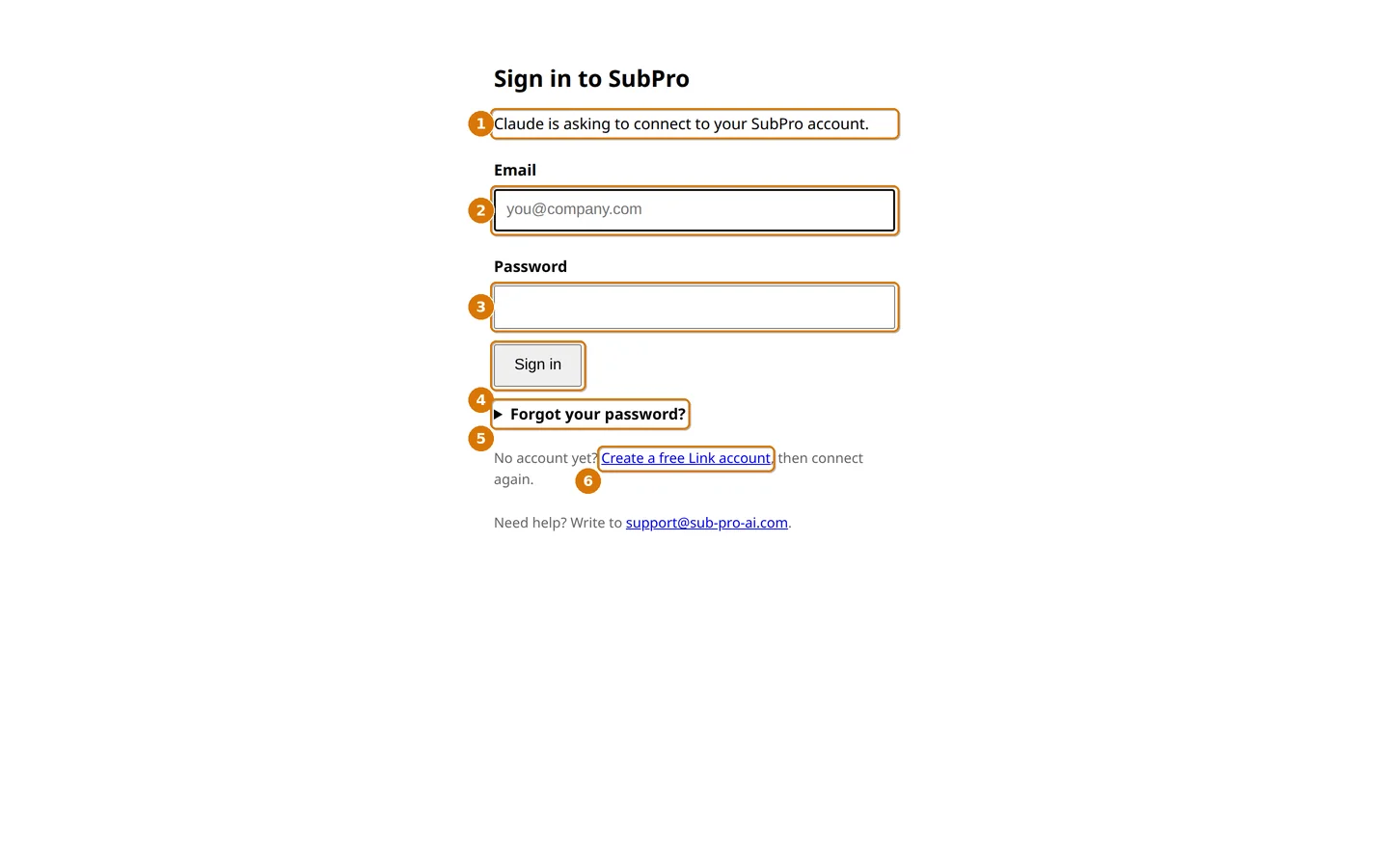 The sign in page Claude opens
- 1Which assistant is asking to connect
- 2Your Link email
- 3Your password
- 4Sign in
- 5Forgot your password opens the emailed link option
- 6No account yet? Create one, then connect again
-
Click Connect on the consent page.
The page is titled Connect Claude to SubPro. It shows the email you are signed in as, says that after you connect it sends you back to claude.ai, and lists what Claude will be able to do: read the library, build submittal documents and check on jobs. Click Connect. Claude shows Link as connected and the page closes. SubPro never sees your conversations.
-
Check that Link is on in your chat.
In a new conversation, open the tools menu under the message box. SubPro Link is listed with its four tools. Leave them on.
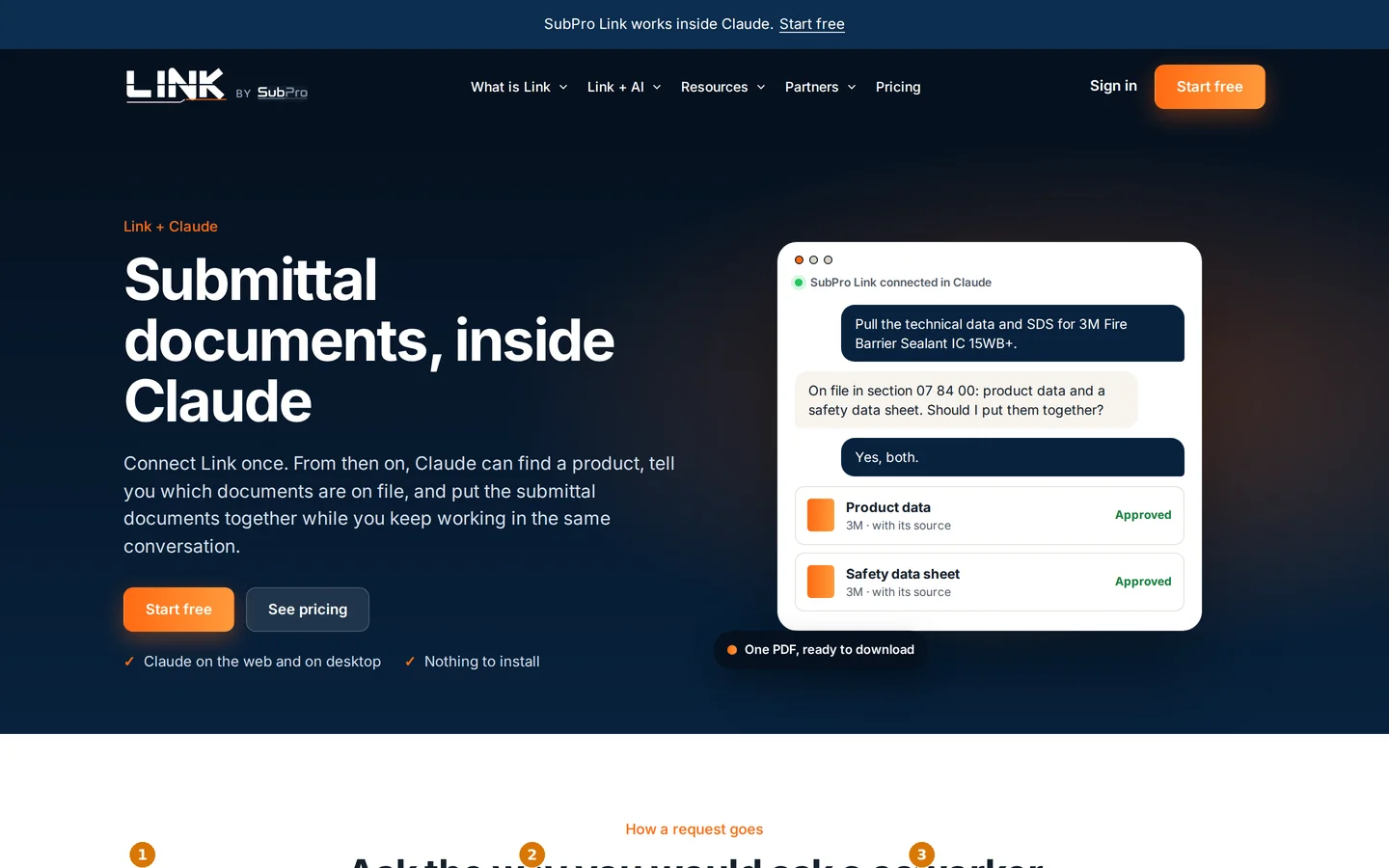
- 1Name the product. Claude searches the library and shows the matches
- 2See what is on file, with review standing and date. Free on every plan
- 3Say yes and get one PDF back
Chapter 5Connect Link to ChatGPT
Same account, same address. ChatGPT calls connectors apps and keeps custom ones behind a developer switch.
-
In ChatGPT, open Settings, then Apps and connectors.
-
Under Advanced, turn on Developer mode.
-
Choose Create. Name it SubPro Link, paste the address, and pick OAuth.https://api.sub-pro-ai.com/mcp
-
Sign in with your Link email and password, then click Connect on the consent page.
This is the same SubPro sign in page shown in chapter 4. The consent page names ChatGPT instead of Claude and says it sends you back to chatgpt.com.
-
Turn Link on in a new chat from the tools menu.
ChatGPT keeps custom apps off until you switch them on for a conversation. Once on, it uses Link when your request names a product.
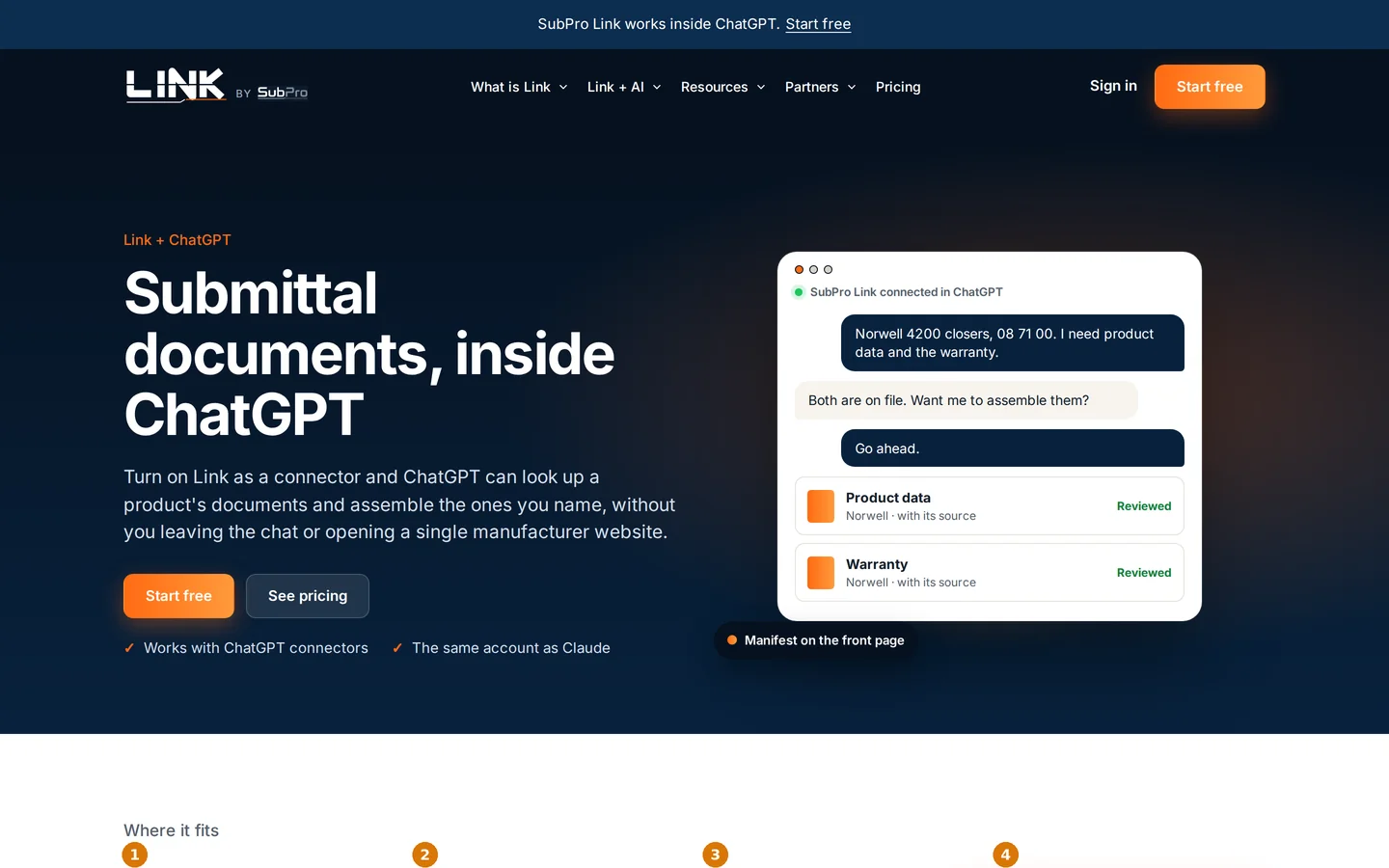
- 1Both names first: manufacturer and product before any build
- 2Ask before spending: a build starts only after you say yes
- 3Three words only for a document's standing
- 4Draft, never sent: Link never submits anything for you
Chapter 6Your first request
Ask the way you would ask a coworker. Name the manufacturer, name the product, and say which documents you want. The assistant decides when to call Link.
-
Start a new chat and name a product.
A model number, a product name, or just the manufacturer all work. Link searches the library and the assistant shows you the matches to pick from.
-
Pick the match and ask what is on file.
Each document comes back with its kind, its review standing, its issue date and the page it was found at. Looking costs nothing.
-
Say which kinds you want, and say yes when Link offers to put them together.
A build starts only after you agree. Link builds exactly the kinds you named. Name only the SDS and the SDS is all you get.
The exchange, word for word
This is a real lookup from the library on the day this guide was written. The product data comes from the search; the list comes from the on file check. Nothing here used the allowance.
Chapter 7What Link says back
Link is deliberately short. It tells you what is on file, offers to put it together, and after delivery lists each document with one word for its standing and the link. It gives no advice and adds nothing you did not ask for.
The three words
| Word | Meaning |
|---|---|
| approved | A person at SubPro checked the document against the manufacturer, the product and the kind. |
| reviewed | SubPro's automatic reviewer confirmed the manufacturer, the product and the kind. |
| needs review | Neither has happened yet. This includes a document Link fetched live for your request. |
What Link never does
- Never lists document kinds that are absent. Most products never publish most kinds, so the list is what exists.
- Never adds a kind you did not name. A request for product data and the SDS returns those two, not a warranty search as well.
- Never starts a build without your yes.
- Never sends, submits or approves anything. The documents are drafts for you to use.
- Never comments on filenames, the age of a document, or how the library is organized.
Chapter 8Build the submittal documents
A build runs in the background. Most finish in under a minute when everything is on file. A build that has to source a document from the manufacturer takes longer, and the assistant tells you when it is ready.
-
Confirm the build when the assistant asks.
The assistant needs both the manufacturer and the product name or number before it will start. If it asks you for one of them, that is Link refusing to guess.
-
Keep working, or ask "is it ready?" after a moment.
The assistant checks the job and, when it is done, reports each attached document with its review word, any requested document that was not found with its note, and the download link. Then it stops.
-
Click the link and save the PDF.
The link expires. Save the file where you keep the project's submittals. If the link has expired, ask the assistant for the submittal documents again and it fetches a fresh link for the same build.
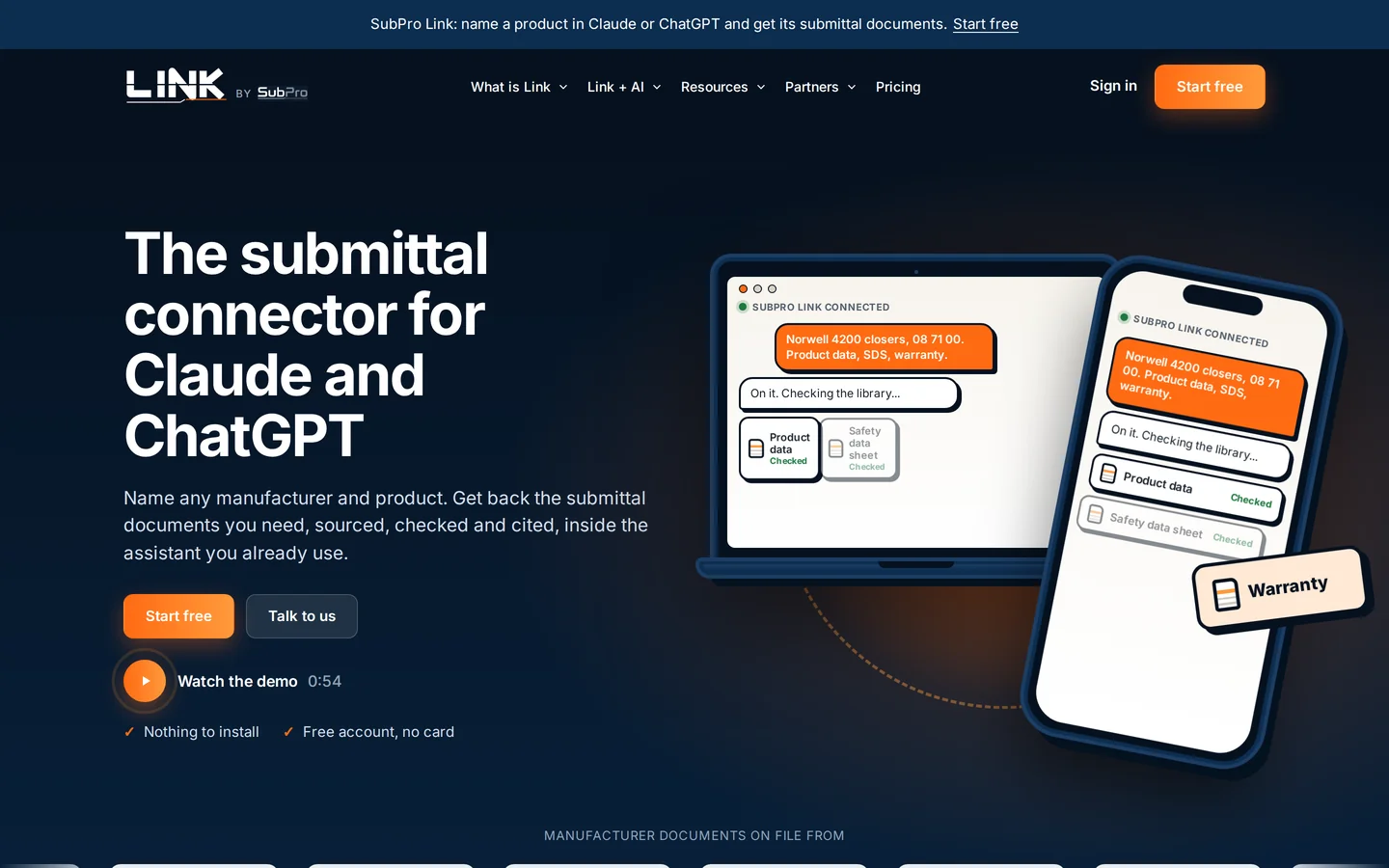
How a full request runs
Chapter 9What you download
One PDF. The first page is a manifest, the rest are the documents in the order they are listed.
The manifest
Titled Submittal documents. It names the manufacturer, the product and the spec section if you gave one. Under Included, each document with its kind, its source address, its issue date and its review word. Under Not included, anything you asked for that was not found, with the note.
The documents
Each document as published by the manufacturer, unchanged, with continuous page numbers across the set.
What counts
Each delivered document counts one against your monthly allowance. A product usually returns three or four. A build that delivers nothing counts zero.
What to do next
Add your transmittal cover, stamp it, and send it the way your project requires. Link does not send anything.
Chapter 10Plans and your allowance
Looking up is free on every plan. You pay for the documents Link delivers, and there is a hard stop at your cap, so there is never a surprise bill.
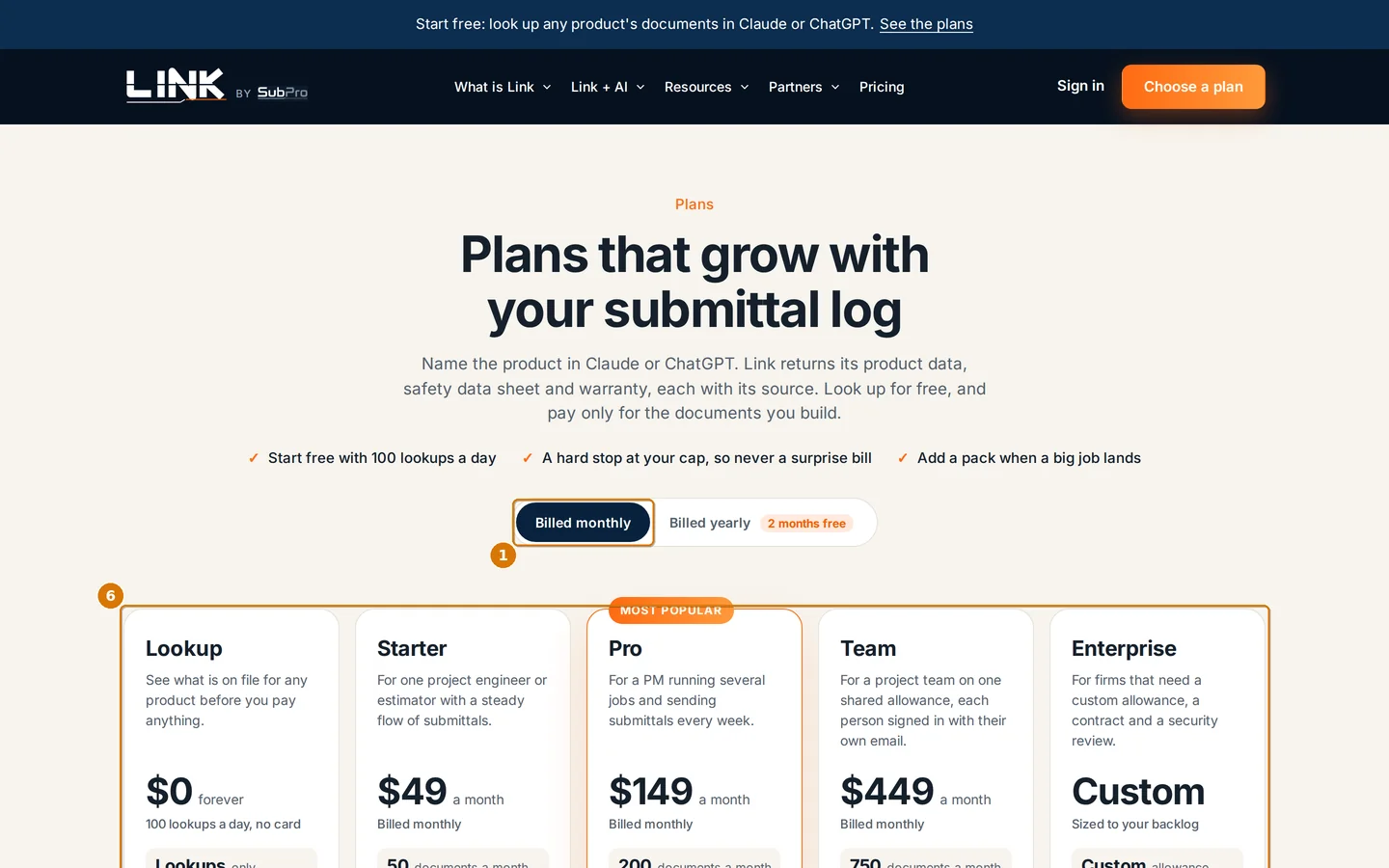
- 1Billed monthly or yearly. Yearly is 12 months for the price of 10
- 2Lookup, free forever, 100 lookups a day, no builds
- 3Starter, 50 submittal documents a month
- 4Pro, 200 a month, the most popular
- 5Team, 750 a month shared by a whole team
- 6Enterprise, a custom allowance and a contract
| Plan | A month | A month, billed yearly | Documents a month | Who it fits |
|---|---|---|---|---|
| Lookup | $0 | $0 | 0, lookups only | Anyone who wants to see what is on file |
| Starter | $49 | $41 | 50 | One project engineer or estimator |
| Pro | $149 | $124 | 200 | A PM running several jobs |
| Team | $449 | $374 | 750, shared | A project team, each person with their own sign in |
| Enterprise | Custom | Custom | Custom | Firms that need a contract and a security review |
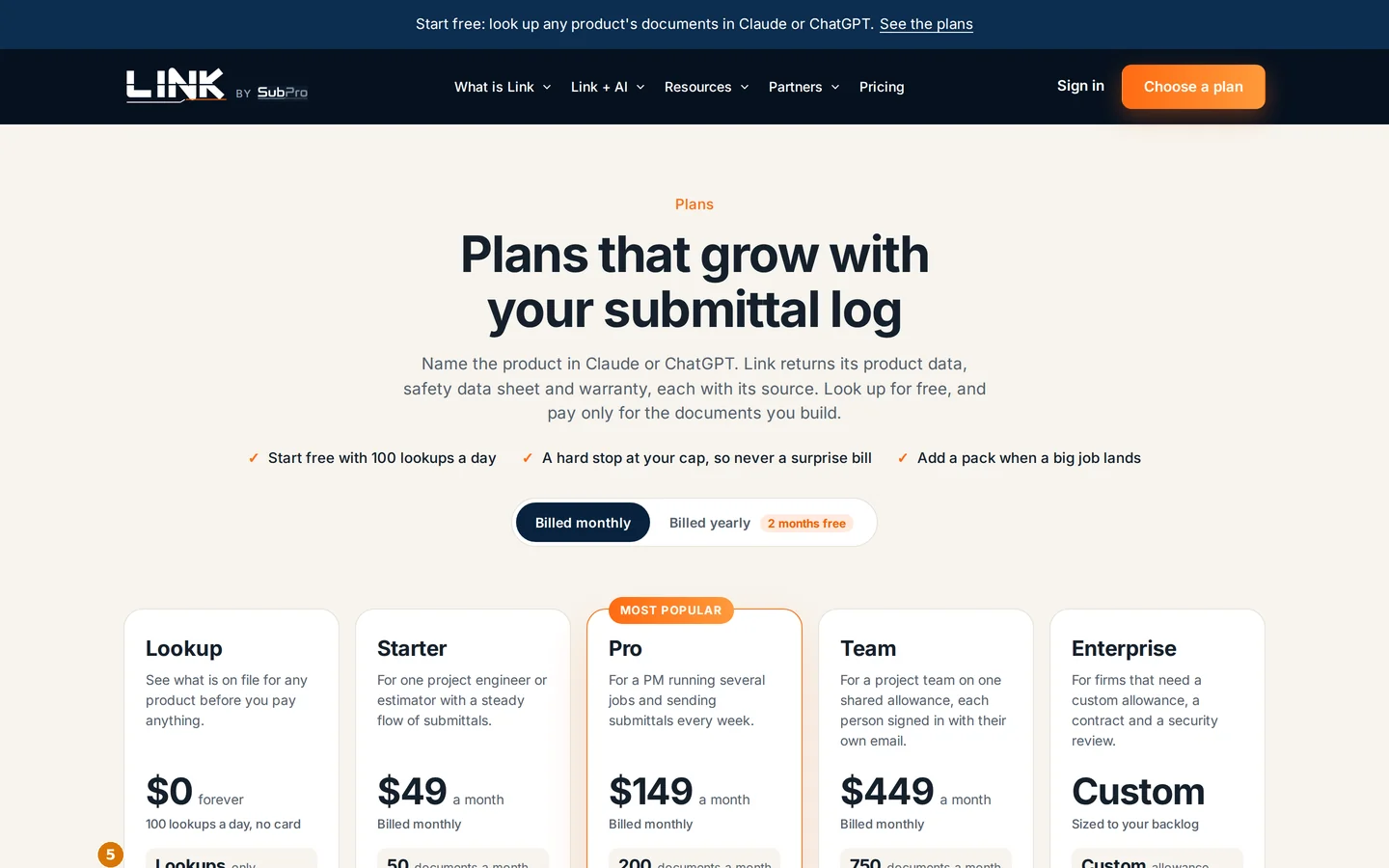
- 1The monthly allowance
- 2Lookups a day: 100 on the free plan, no limit on paid plans
- 3Building is on paid plans only
- 4At the cap, builds stop. Nothing runs past it
- 5A request that comes back empty counts zero
Pick a plan
-
Sign in, then click Pick a plan on your account page, or open the pricing page and click the plan's button.
Checkout opens with your account email filled in. Pay with the same email so the plan lands on your account.
-
Pay. You land back on your account page with a welcome note and the new cap.
Prices are in US dollars plus any sales tax. Your plan renews until you cancel, and after a cancellation you keep it through the period already paid.
Chapter 11Manage billing and packs
-
On your account page, click Manage billing.
The billing portal opens. Change your card, switch plans, download invoices, or cancel. It brings you back to your account page when you are done.
-
Need more this month? Click Add a pack.
A pack adds 50 documents for $39, one time. Packs are for active paid plans, and the extra documents last until the end of the month or the end of your subscription, whichever comes first.
Chapter 12Your team on one plan
On the Team plan a whole project team shares one allowance, 750 submittal documents a month, and every member signs in under their own email.
- Everyone creates their own free account with their work email.
- One person buys the Team plan, then writes to support@sub-pro-ai.com with the emails to put on it. Those accounts share the allowance from then on.
- Each person connects Link to their own Claude or ChatGPT using the steps in chapters 4 and 5.
- The shared allowance shows on the account page. A pack bought for the plan extends it for everyone.
Chapter 13Privacy and what Link sees
- Link holds no project data. It does not read your chat. It receives the manufacturer, the product and the kinds you asked for, nothing else.
- The assistant receives metadata and links only. Document contents never pass through the assistant. You download the PDF yourself.
- Each set you download sits behind an expiring link.
- Every document cites its source. The manifest shows the address each one was found at.
- Your password never leaves SubPro. The website never sees it. The assistant never sees it. Sign in happens on SubPro's own page.
- You can disconnect any time. Connected apps on your account page lists every assistant with a Disconnect button.
Chapter 14Requests that work well
Look up a product
"What does SubPro have for Norwell 4200 closers?"
"Find Hilti firestop sealant CP 606."
See what is on file
"List the documents for Tremco Dymonic 100."
"Which Carlisle TPO products have a warranty on file?"
Build exactly what you need
"Put together the product data and the SDS for 3M Fire Barrier Sealant IC 15WB+, section 07 84 00."
"The warranty only, for Carlisle Sure-Weld TPO 60 mil."
Build the full set
"Build the full submittal for Sherwin Williams Pro Industrial DTM Acrylic."
That means product data, the safety data sheet and the warranty.
Work a section at a time
"For 08 71 00, the closers are Norwell 4200 and the hinges are Hager BB1279. Product data and SDS for each."
Collect a finished build
"Is the 3M build ready?"
"Give me the download link for the Tremco documents again."
Chapter 15Troubleshooting
| Symptom | Cause, and the fix |
|---|---|
| No verification email | Check spam. Link always says a link is on its way, whatever the address. If nothing arrives in a few minutes, create a free account with the address you meant to use. |
| The emailed link says it has expired | Links work once and for 15 minutes. Ask for a new one from the sign in page. |
| The connector dialog in Claude sits on Loading | Remove the connector, add it again with only the address, and leave the advanced settings empty. Claude registers itself with Link when you connect. |
| The sign in page says the assistant is asking to connect, but you have no account | Click Create a free Link account, finish sign up, then connect again from the assistant. |
| Link shows as connected, but the assistant does not use it | Open the tools menu in the chat and make sure SubPro Link is switched on. In ChatGPT, custom apps are off until you turn them on for the conversation. |
| The assistant asks for the manufacturer or the product again | Link needs both before a build. Give the full manufacturer name and the product name or model number. |
| "Not found" on a document you asked for | Link searched the manufacturer's published documents and did not find that kind. The note says what it tried. Attach your own copy to the submittal. |
| The assistant says the allowance is used up | Builds stop at your cap. Add a pack from your account page, or wait for the first of the month. Lookups keep working. |
| Free plan: "100 lookups today" | The free plan allows 100 lookups a day. Paid plans have no daily limit. |
| The download link has expired | Ask the assistant for the submittal documents again. It fetches a fresh link for the same build without spending anything. |
| Paid, but the account page still says Lookup | The plan lands on the email you paid with. Sign in with that email. If it still shows Lookup after a few minutes, write to support with the receipt. |
| Connection stops working after an hour | Disconnect Link on your account page under Connected apps, then connect again from the assistant. |
Still stuck? Write to support@sub-pro-ai.com with the email on your account and what you asked the assistant.
Chapter 16Questions people ask
Do lookups count?
No. Searches and on file lists cost nothing. A free account gets 100 of them a day, and paid plans have no daily limit.
What uses up the allowance?
Only the documents a build delivers, one each. An empty build uses none.
Can I use the same account in both assistants?
Yes. One Link account connects to Claude and to ChatGPT, and your allowance is shared between them.
Does Link read my project files?
No. It holds no project data and never reads your chat. It receives the names you type and returns document metadata and links.
Can Link submit for me?
No. Everything it builds is a draft for you to send the way your project requires.
What if the manufacturer is not in the library?
Ask anyway. Link searches the manufacturer's published documents for the kinds you name and delivers what it finds. Manufacturers can also join the library through the partners page.
How current are the documents?
Each document carries the date the manufacturer issued it and the date it was retrieved. The manifest shows both.
Can I cancel?
Any time, from Manage billing. You keep the plan until the paid period ends, then the account drops to the free plan. Your account and connections stay.
Chapter 17Glossary
- Connector
- What Claude calls an outside tool it can use in a chat. ChatGPT calls the same thing an app. Link is one.
- Connector address
- The one address you paste into the assistant: https://api.sub-pro-ai.com/mcp. The same for every account.
- Submittal documents
- The set Link builds for one product: the documents you asked for, behind a manifest, as one PDF.
- Manifest
- The first page of the PDF. Lists each document with its source, its date and its review word, and anything that was not found.
- Kind
- A type of document: product data, safety data sheet (SDS), technical data, warranty, manual, and so on.
- Review word
- One of approved, reviewed or needs review. See chapter 7.
- Allowance
- The number of documents your plan delivers a month. Resets on the first of the month, UTC.
- Pack
- 50 extra documents for the current month, bought one time from your account page.
- Lookup
- A free search or list request. The free plan allows 100 a day.
- Cap
- The hard stop on builds when your allowance is used up.
- Spec section
- The CSI MasterFormat number for a section, such as 07 84 00 Firestopping. Give it when you know it.
- Full submittal
- Product data, the safety data sheet and the warranty for one product. Only when you ask for it by that name.
Prices shown are those published on the plans page on the date above. For help, write to support@sub-pro-ai.com.